How to Forward TradingView Alerts to Telegram, Discord & Feishu (Step-by-Step)
A step-by-step guide to forwarding TradingView alerts (webhooks) to Telegram, Discord, and Feishu with SignalTo. No code, set up in minutes, with message templates, auto-retries, and delivery logs.
 SignalTo Team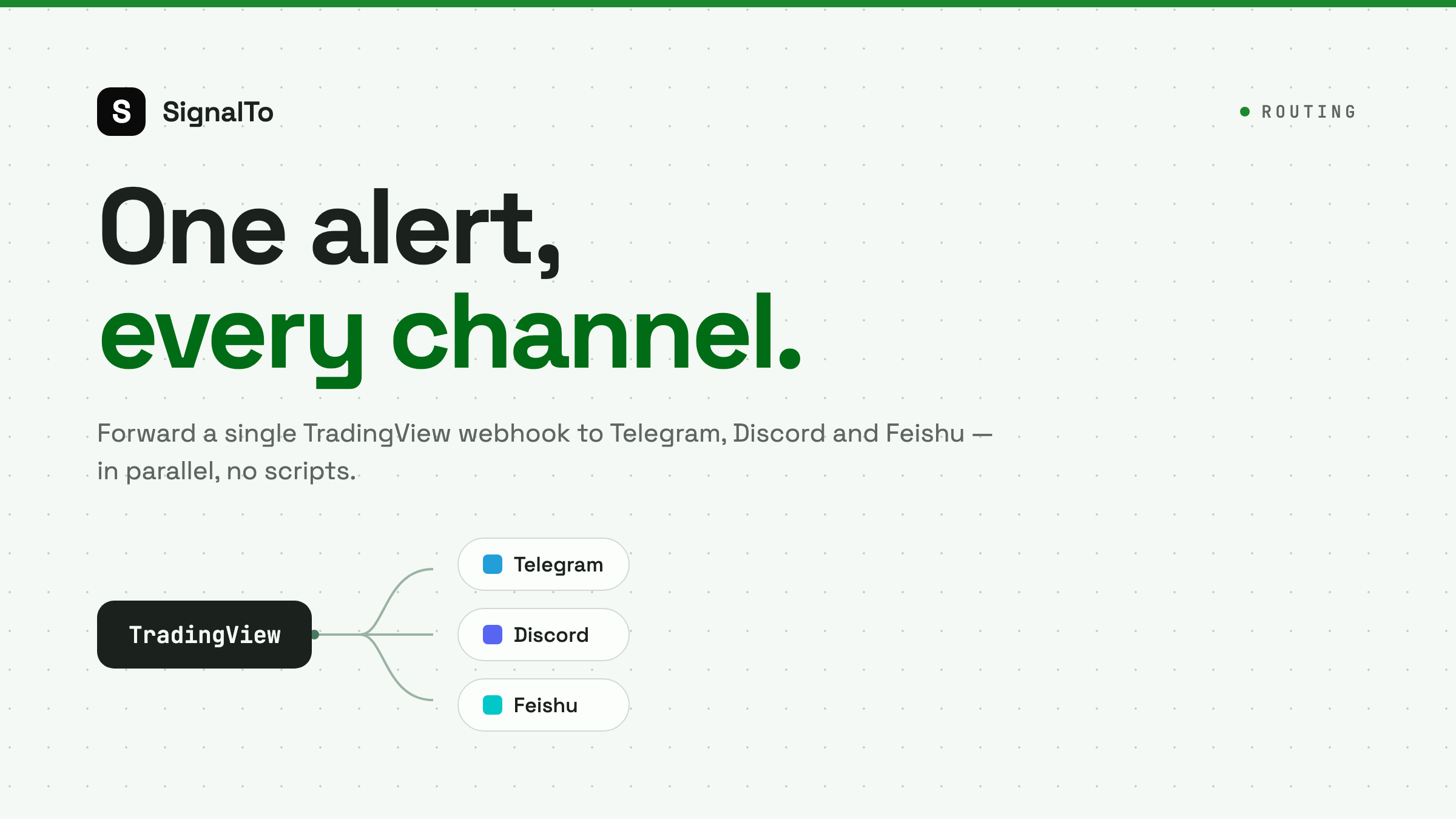
Most traders hit the same wall: you set up a strategy alert in TradingView, but the message only pops up in the web page or app. By the time you notice, the move is gone. The better approach is to have TradingView alerts automatically forwarded to the chats you already watch: Telegram, Discord, or Feishu.
This guide walks you through exactly that, using SignalTo. No code required, and it takes about five minutes.
Note: SignalTo only forwards signals and sends notifications. It never touches your funds and never places trades for you.
How it works
The whole flow is just three steps:
- Get your alert URL: SignalTo generates a dedicated alert URL for each of your strategies.
- Paste it into TradingView: drop that URL into your TradingView alert's webhook field.
- Choose where it goes: pick the Telegram, Discord, or Feishu chats to notify, and alerts arrive automatically.
Step 1: Create an alert URL
Log in to the SignalTo dashboard and create an alert URL (one per strategy). You'll get a dedicated URL that looks like this:
https://signalto.io/api/inbound/tradingview/your-unique-token
This URL has signature verification and automatic de-duplication built in, so the same alert is never sent twice. It's safe to paste into TradingView.
Step 2: Configure the alert in TradingView
- Open your chart and click Alert on the right.
- In the dialog, go to the Notifications tab and enable Webhook URL.
- Paste the URL from Step 1.
- In the Message box, enter what you want to send. JSON is recommended so you can template it later, for example:
{
  "symbol": "{{ticker}}",
  "action": "{{strategy.order.action}}",
  "price": "{{close}}"
}
Save the alert. From now on, every time the condition fires, TradingView pushes this payload to SignalTo.
Step 3: Add delivery targets and a forwarding rule
Back in SignalTo, add your delivery targets:
- Telegram: enter a bot token and the group/channel ID;
- Discord: paste the channel's webhook URL;
- Feishu: paste the group bot's webhook URL.
Then create a forwarding rule that connects your alert URL to one or more delivery targets. A single signal can fan out to multiple platforms and groups at once.
To make messages look great, configure a message template per platform that renders fields like symbol, action, and price into readable text, with a live preview before you send.
Verify it
Once everything is set, trigger the alert manually in TradingView, or use SignalTo's test send. Within a few seconds, the message should land in your chat.
Every push leaves a delivery log: when it was sent, where it went, and whether it succeeded. If a send fails, SignalTo retries automatically; anything that still fails is archived for one-click resend, so nothing slips through.
Wrap-up
Connecting TradingView alerts to Telegram, Discord, and Feishu really is just three steps: alert URL → paste into TradingView → pick your chats. With SignalTo's templates, auto-retries, and delivery logs, you no longer have to babysit the screen or worry about missed signals.